Before you start
You need to be signed in. The forms you see depend on your account. If a form is missing, contact your administrator.
Start a new form
1
Open the Forms list
The list shows the forms you’ve already started or submitted, newest first.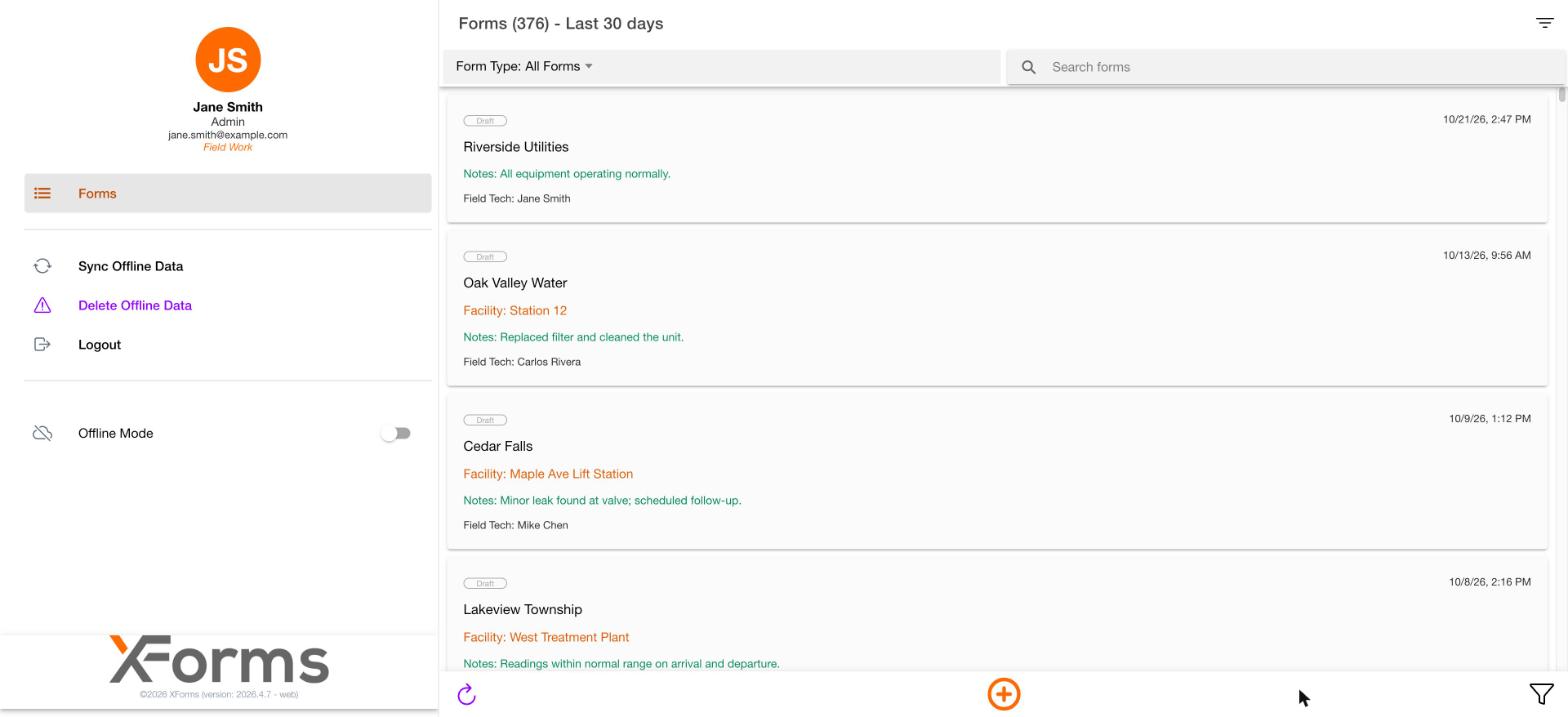
2
Tap the orange + button
The button is at the bottom of the screen. The Select a form window opens.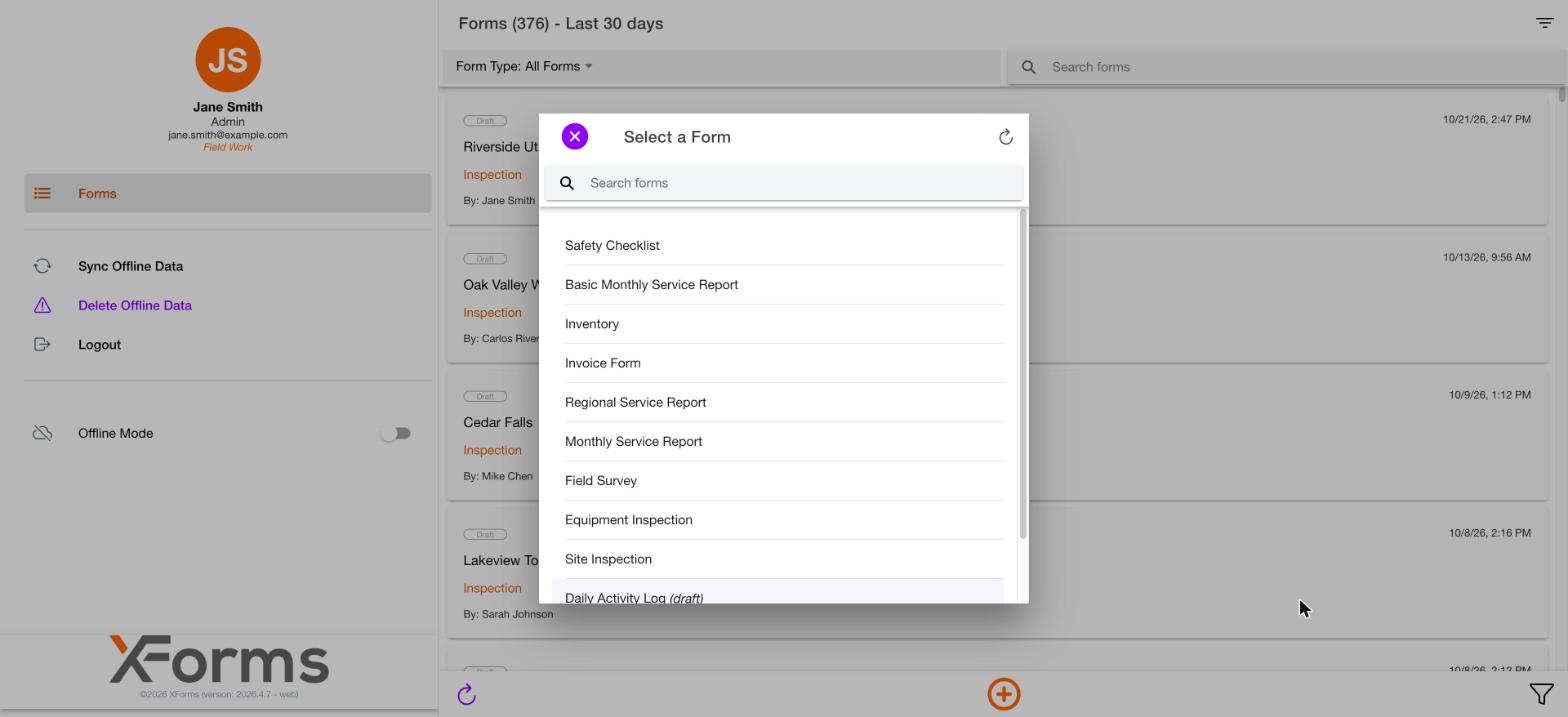
3
Tap the form you want
Use the search box at the top to find it in a long list. The form opens with the title New: [form name].
Fill in the fields
Forms are divided into sections. Tap a section’s header to expand or collapse it. Labels in orange are required.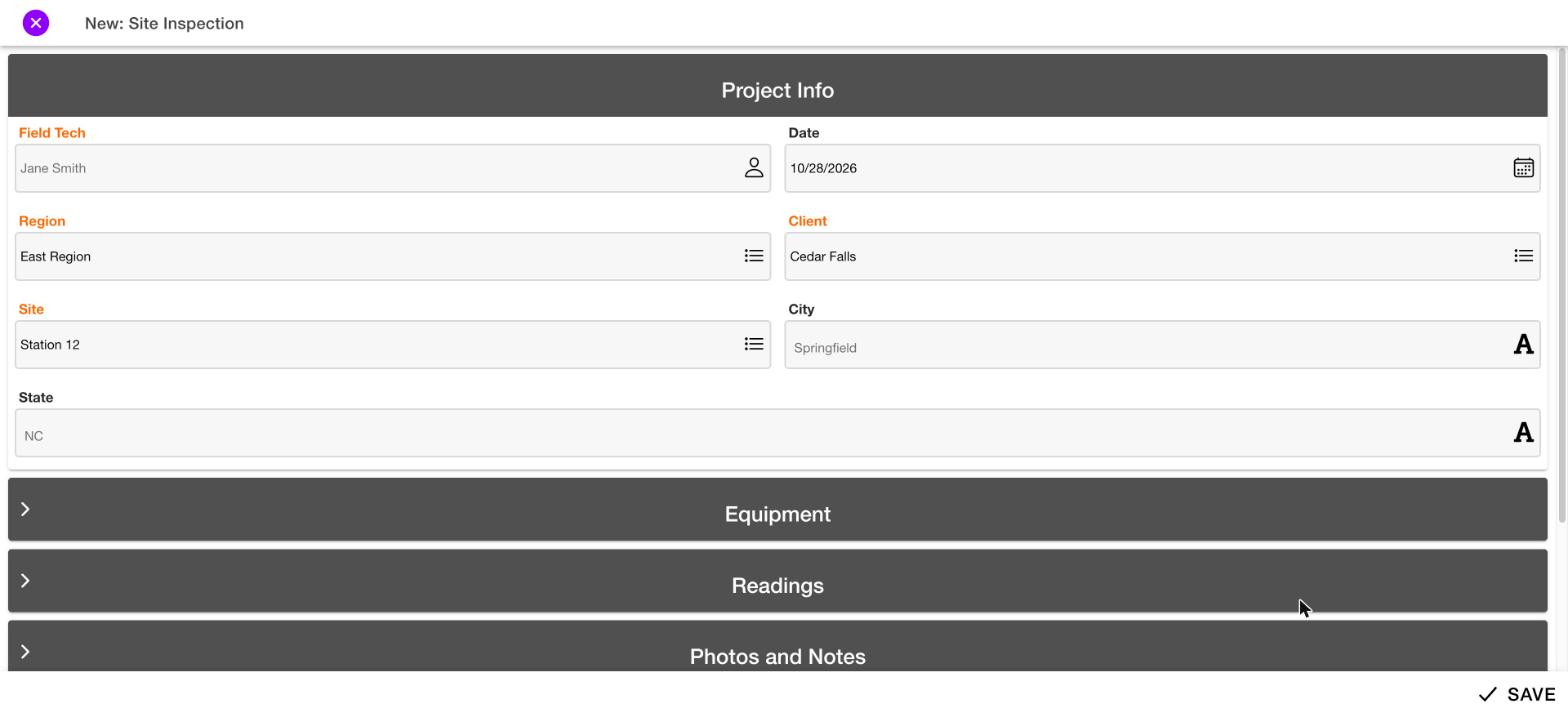
Pick lists
Fields that show Tap to Select and a list icon open a pick list. Tap an item to choose it. Use the search box to filter long lists.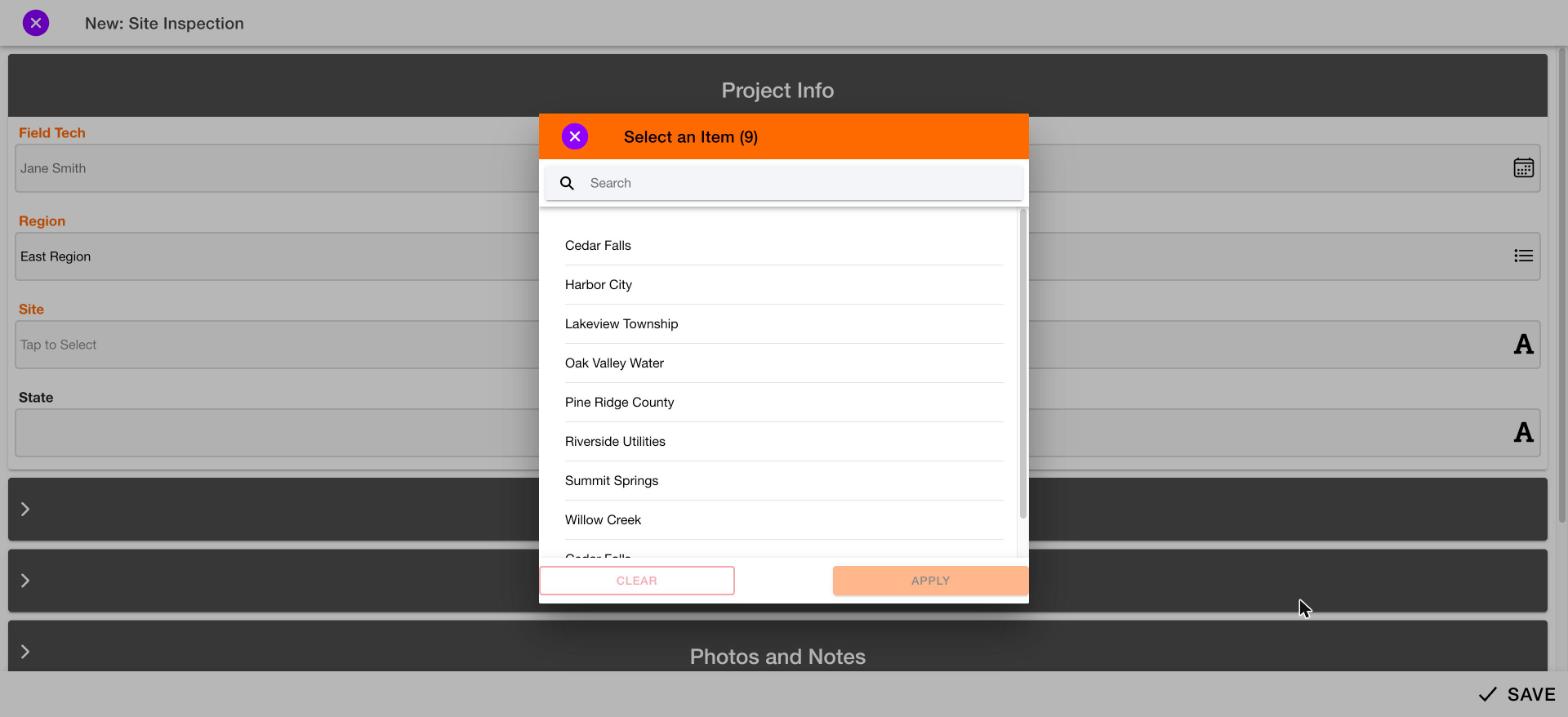
Data grids
Some sections contain a grid for entering several rows of readings.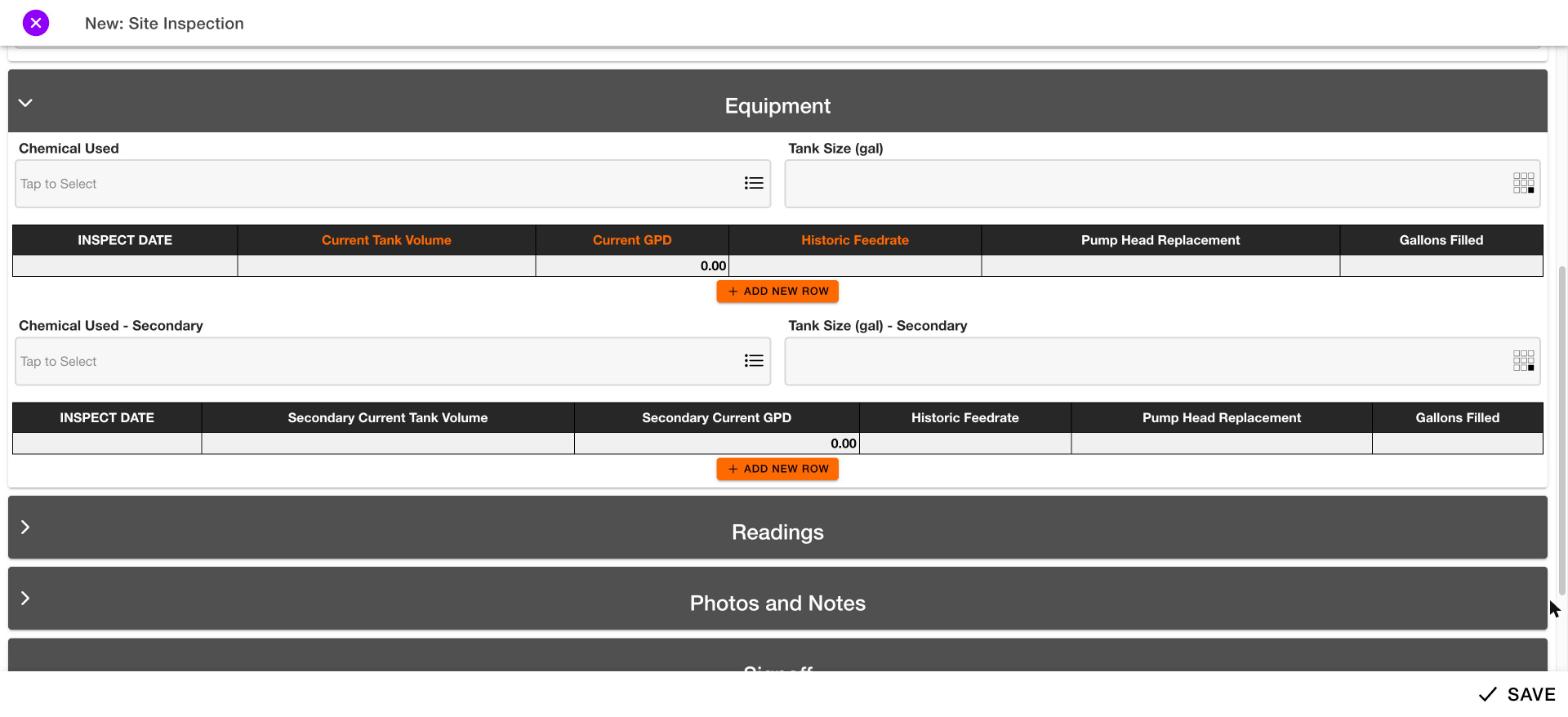
1
Tap Add new row
The Table row window opens.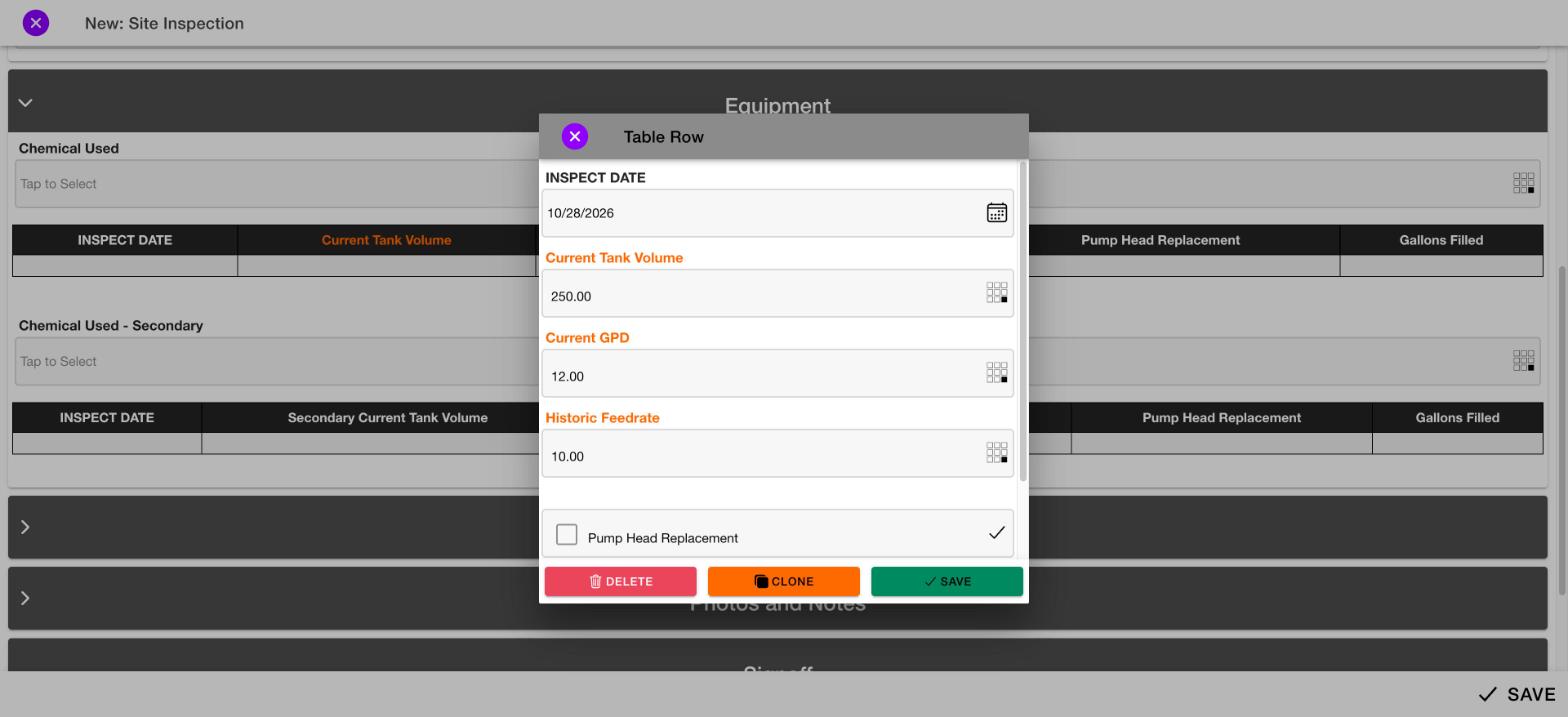
2
Enter the values
Fill in each field for the row.
3
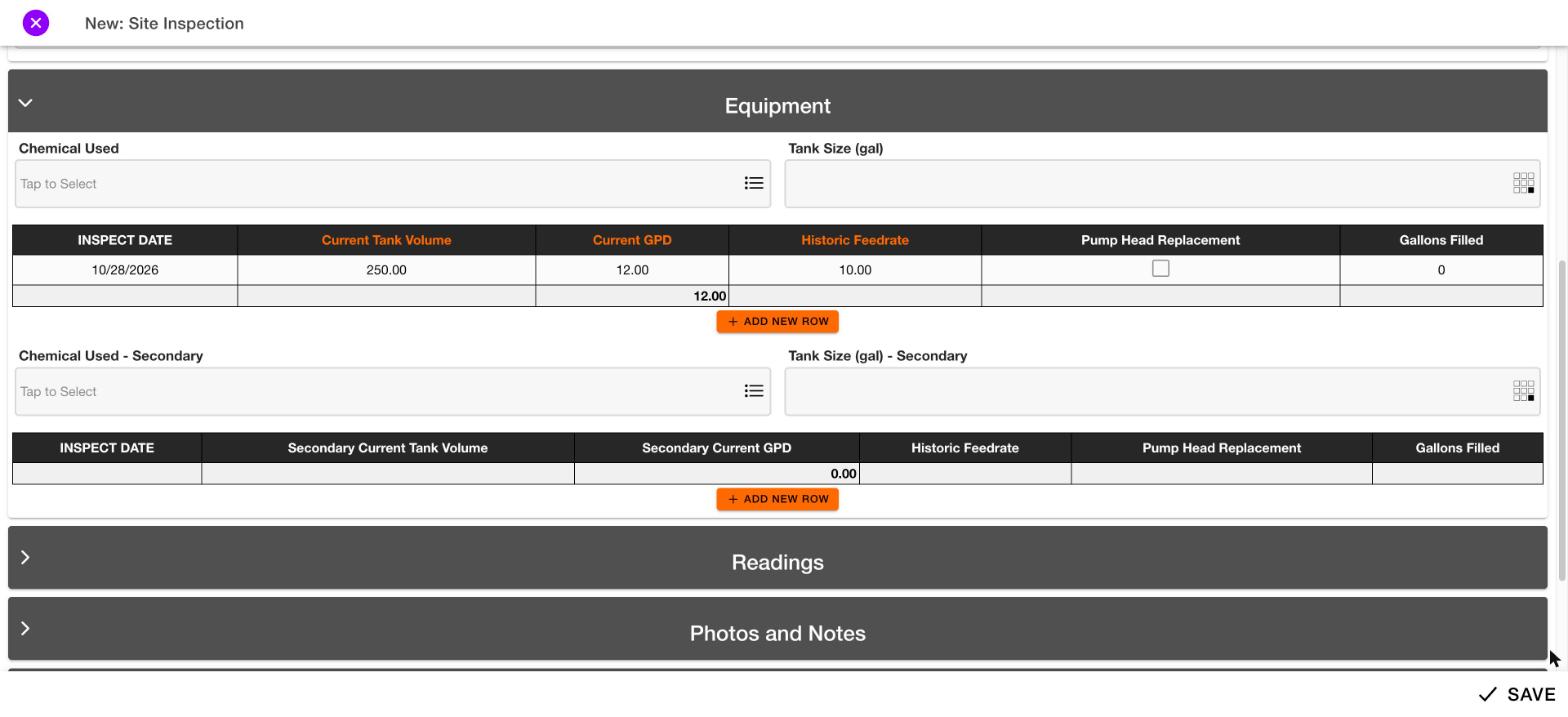
Tap Save
The row is added to the grid.
Photos, notes and signatures
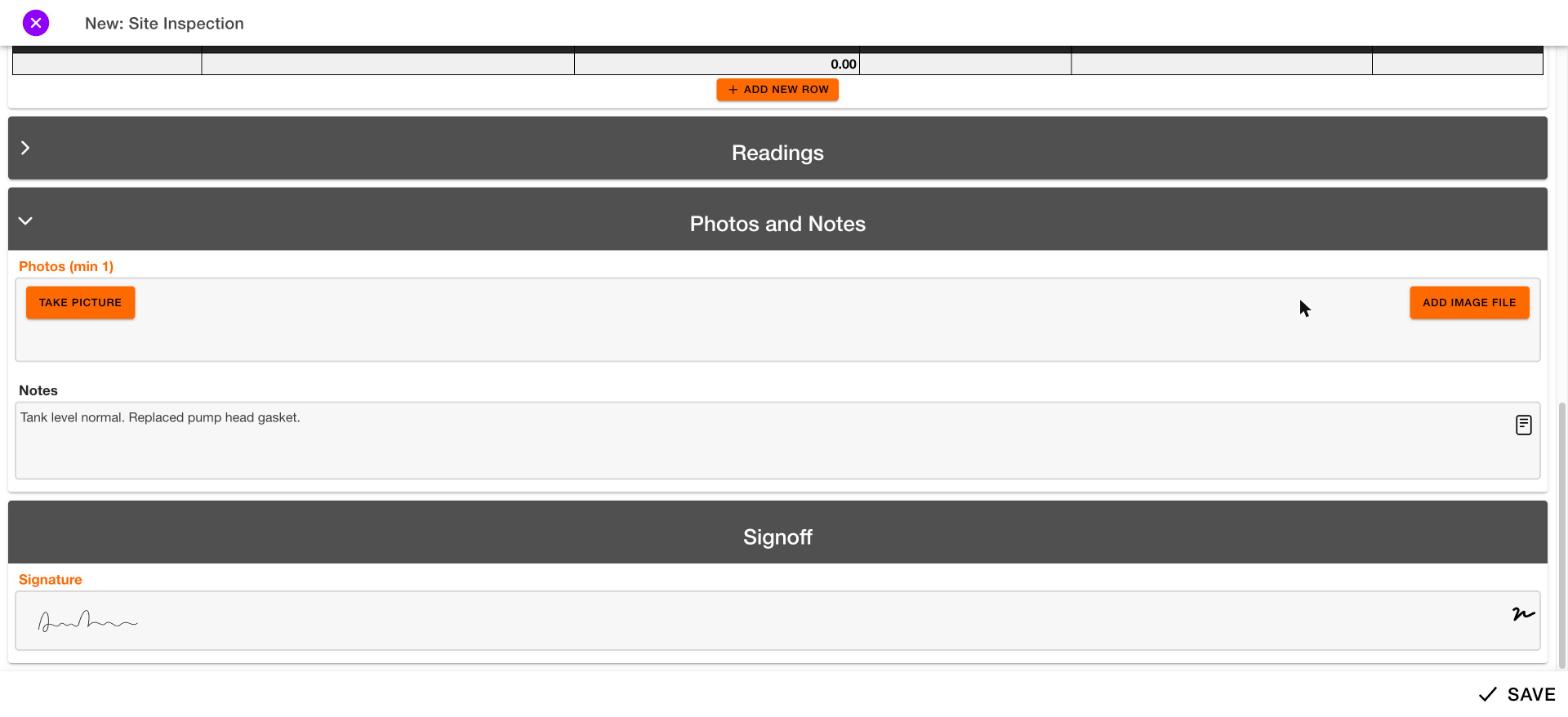
Tap Take picture to use your camera. Tap Add image file to attach a photo you already have. If the label says “(min 1)”, you must add at least one photo. Type your comments in Notes. To sign, tap the Signature field. Sign with your finger or mouse, then tap Save signature. Tap Clear to start over.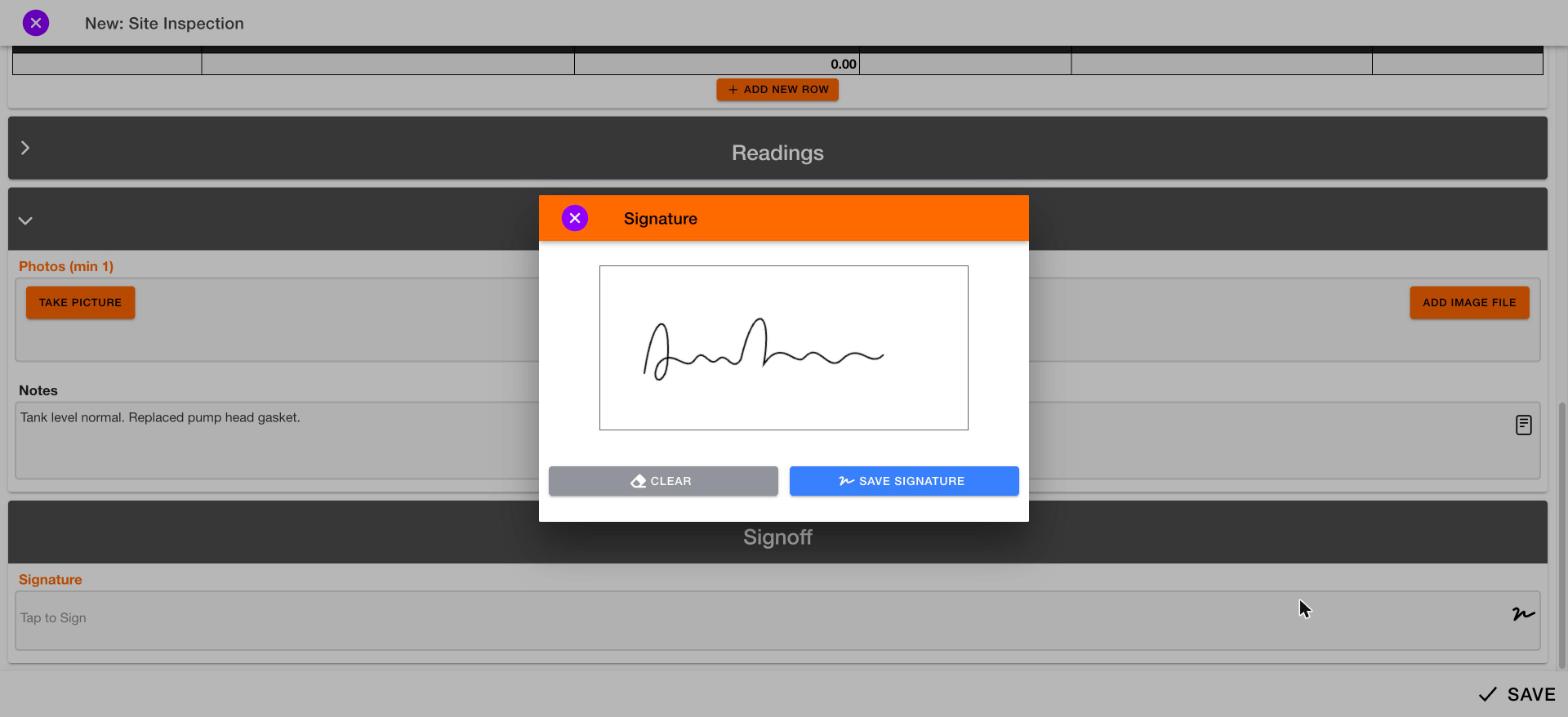
Save your form
Tap Save in the bottom-right corner.Needs review: Steps after saving (required-field checks, draft or submitted status, and syncing) will be confirmed with a test account before publishing.
Leave without saving
Tap the X in the top-left corner. When asked “Discard changes?”, tap Yes to close the form without saving. Tap Cancel to keep working.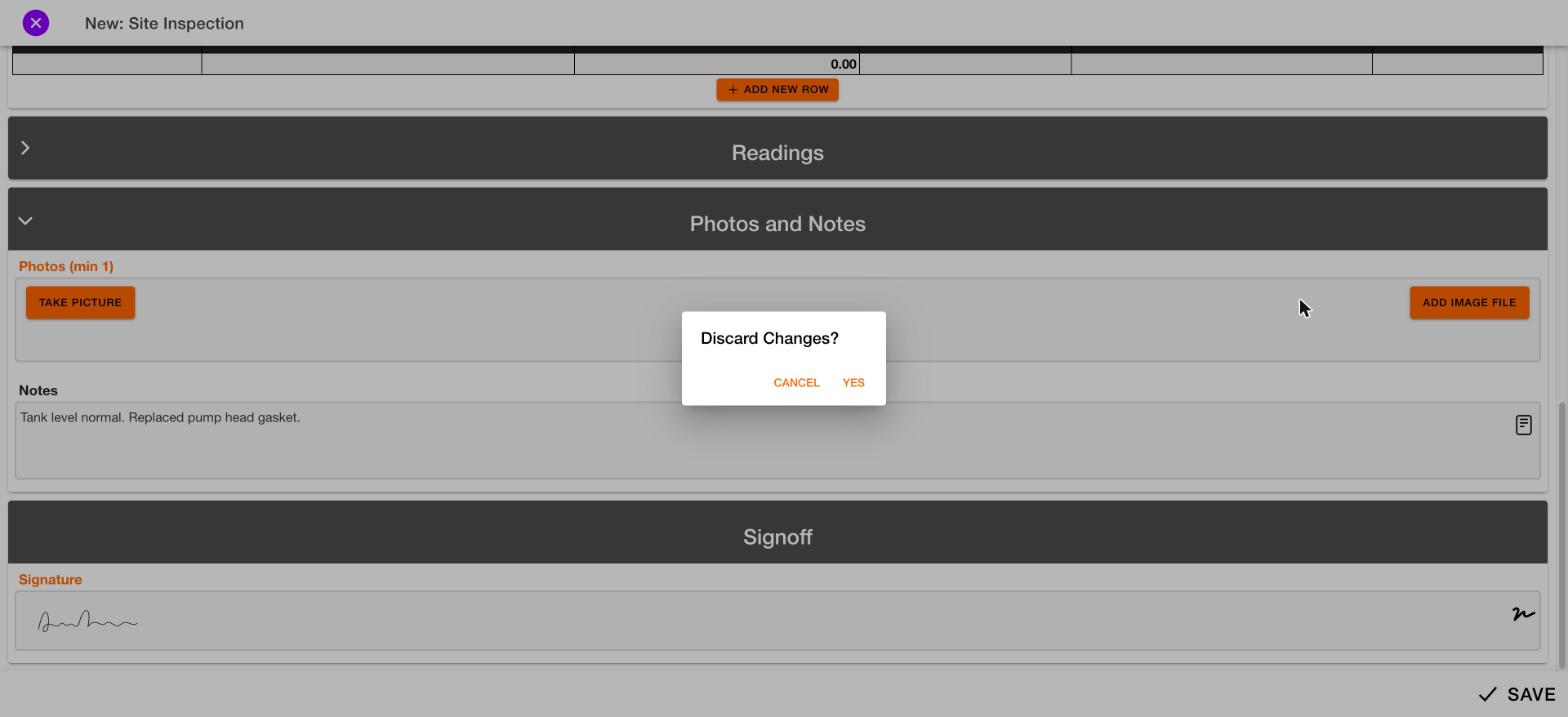
More pages, including working offline, are coming.